
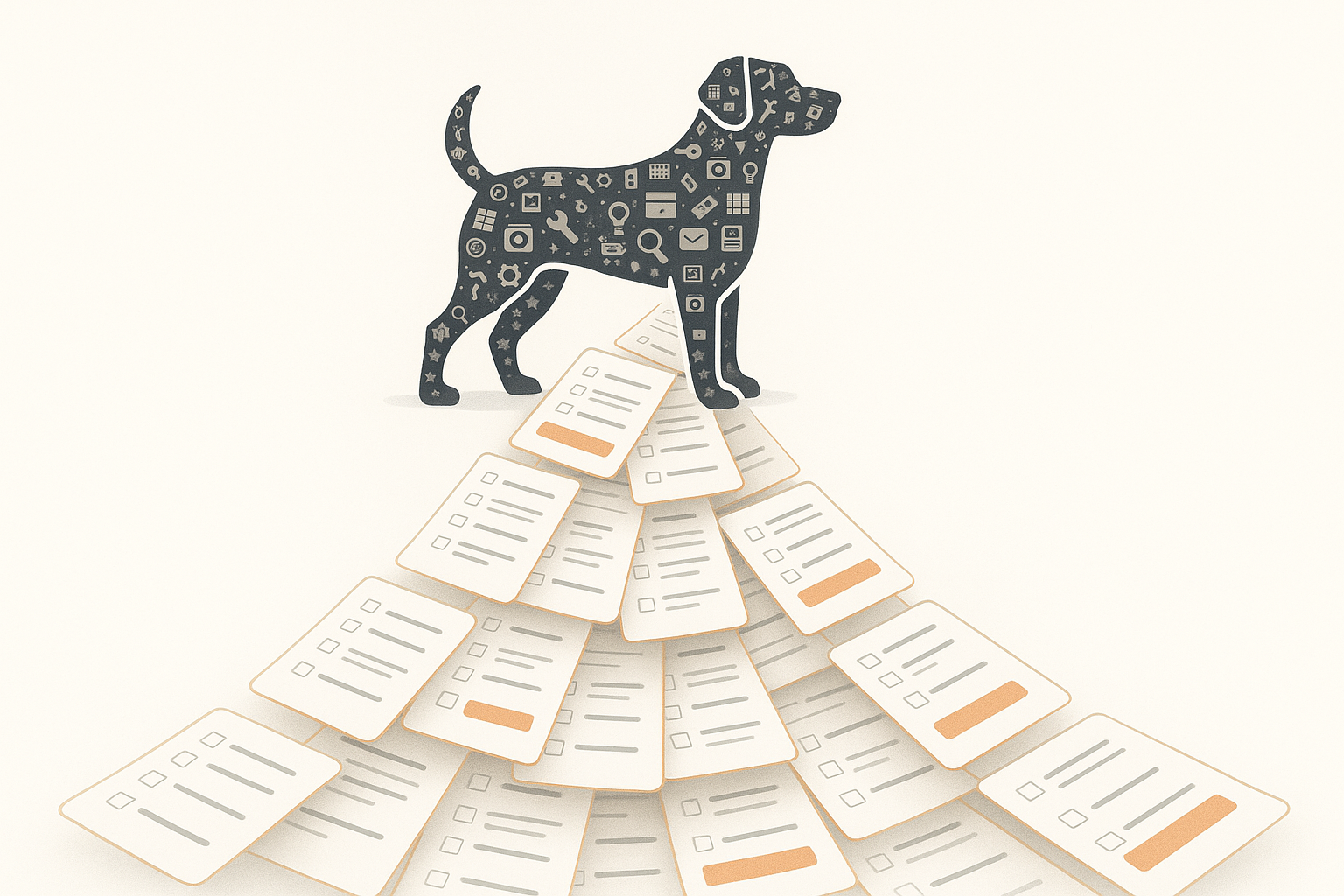
Stop Re-inventing the Wheel: Meet StashDog Item Templates
Life is too short to manually type "Publisher: Marvel" forty-seven times in one afternoon.
You’re here because you want an organized life, but you probably don’t want to spend your entire weekend acting as a data entry clerk for your own closet. We hear you. That’s why we’ve launched Item Templates, a feature designed to take the "ugh" out of inventoughry.
What are Item Templates? (And why you actually care)
A template allows you to create new items with pre-filled everything: tags, custom field values, collection assignments, and even relationships to other items. Instead of starting from a blank page every time you buy a new camera lens or a rare comic, you start with a fully-configured profile that just needs a name and a photo.
We’re launching with over 200 professionally-curated preset templates, covering everything from tool libraries to photography studios.
Real-World Magic: How to Use Templates
1. The Photography Pro: The "Standard Product Shot"
Imagine you’re running a studio. Every time you add a piece of gear, you have to tag it "Photography", assign it to the "Studio B" collection, and link it to your insurance document.
- The Template Way: Select the "Camera Lens" preset. It automatically populates custom fields like "Mount Type" and "Focal Length," tags it as "High-Value," and drops it into your "Camera Gear" collection. Total time spent? About three seconds.
2. The Collector: "The Comic Book Vault"
If you’re cataloging a massive collection, consistency is god.
- The Template Way: Create a custom "Comic Book Entry" template. Set the publisher to "Image," the condition tag to "Near Mint," and the storage container to "Box A." Now, as you rip through that stack of back issues, every item looks exactly the same in your database without you lifting a finger.
3. The DIY Enthusiast: The "Power Tool" Library
Tired of losing track of warranties?
- The Template Way: Use our "Power Tool" preset. It comes pre-loaded with safety tags and a "Maintenance" collection assignment. When you add that new circular saw, the framework for tracking its service history is already there.
How It Works: A Quick Guide
Using a Preset: When adding a new item, browse our library of 200+ presets. Categories include Photography, Collectibles, Tools, and more. Select one, and watch the metadata fill itself in. You can still edit anything before hitting save—the template is just the starting point.
Saving Your Own Custom Templates: Found a configuration that works perfectly for your specific workflow? Don't let it go to waste. You can save any existing item as a custom template. Give it a name like "Grandpa’s Watch Collection" or "Kitchen Appliances," and it’ll be waiting for you the next time you add an item.
Pro Tip: Template Inheritance If you apply a template but need to change the "Storage Location" for one specific item, go for it. Your manual edits override the template defaults, and your original template remains untouched for next time.
The Bottom Line
Inventory shouldn't feel like a second job. With Item Templates, StashDog does the heavy lifting so you can get back to the things you actually enjoy—like actually using your gear or reading those comics.
Ready to clear the chaos? Jump into StashDog and try a preset template today.